Desktop Tips
Tip #830
July 9, 2026

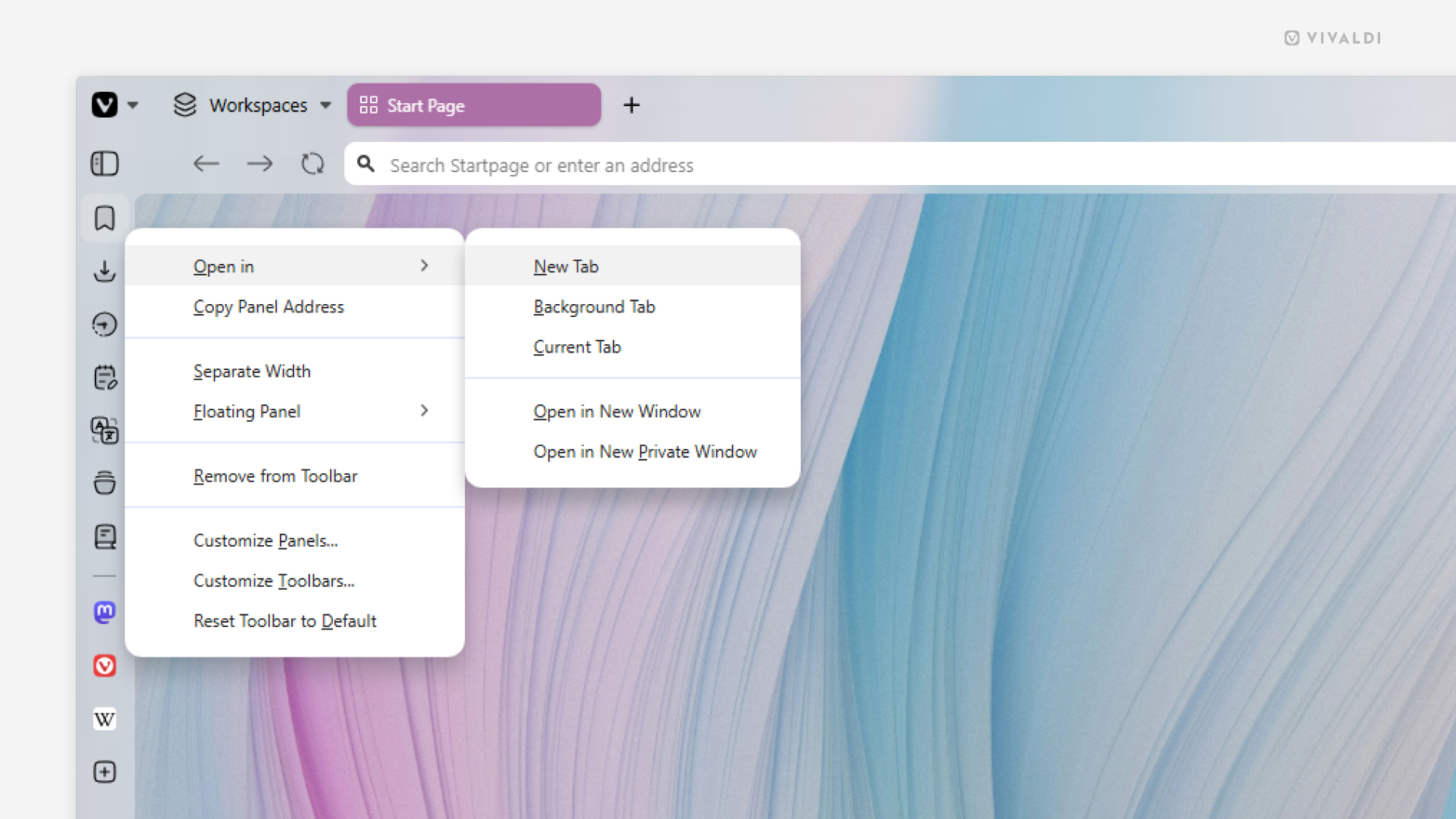
When the narrow sidebar view doesn’t cut it, open the panel in a tab.
In addition to the Panels, Bookmarks, History, and Notes can all be viewed and managed in a full tab view. And since Web Panels are just small mobile versions of websites, they can logically be opened in a tab as well. While there are many ways to open each of them in a tab, the following option is probably one of the quickest ways.
To open a panel in a tab:
- Right-click on the panel’s button on the sidebar.
- Hover over “Open in” and select your preferred option. For example, open in new tab or in a new window.
Tip #829
July 7, 2026
Choose whether to display Speed Dials with or without titles.
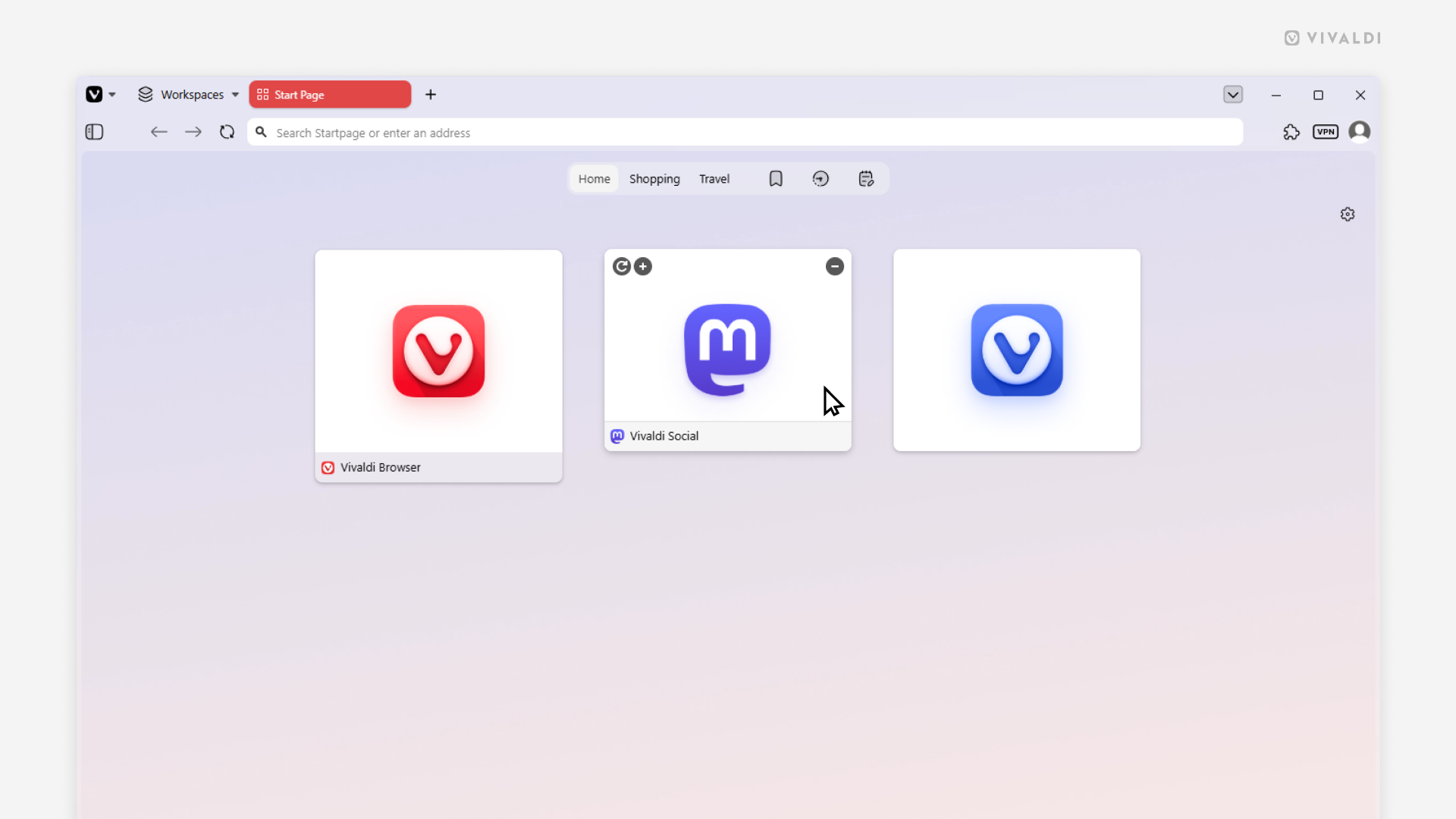
Speed Dials in Vivaldi allow you to quickly access your favorite websites from the Start Page. On desktop you can customize Speed Dials to display the title or not, or only show it when you hover over the Speed Dial.
To pick your preferred Speed Dial look:
- Go to Settings > Start Page > Speed Dial > Speed Dial Appearance.
- Choose between:
- Show Title
- Show Title on Hover
- Hide Title
Tip #826
June 25, 2026
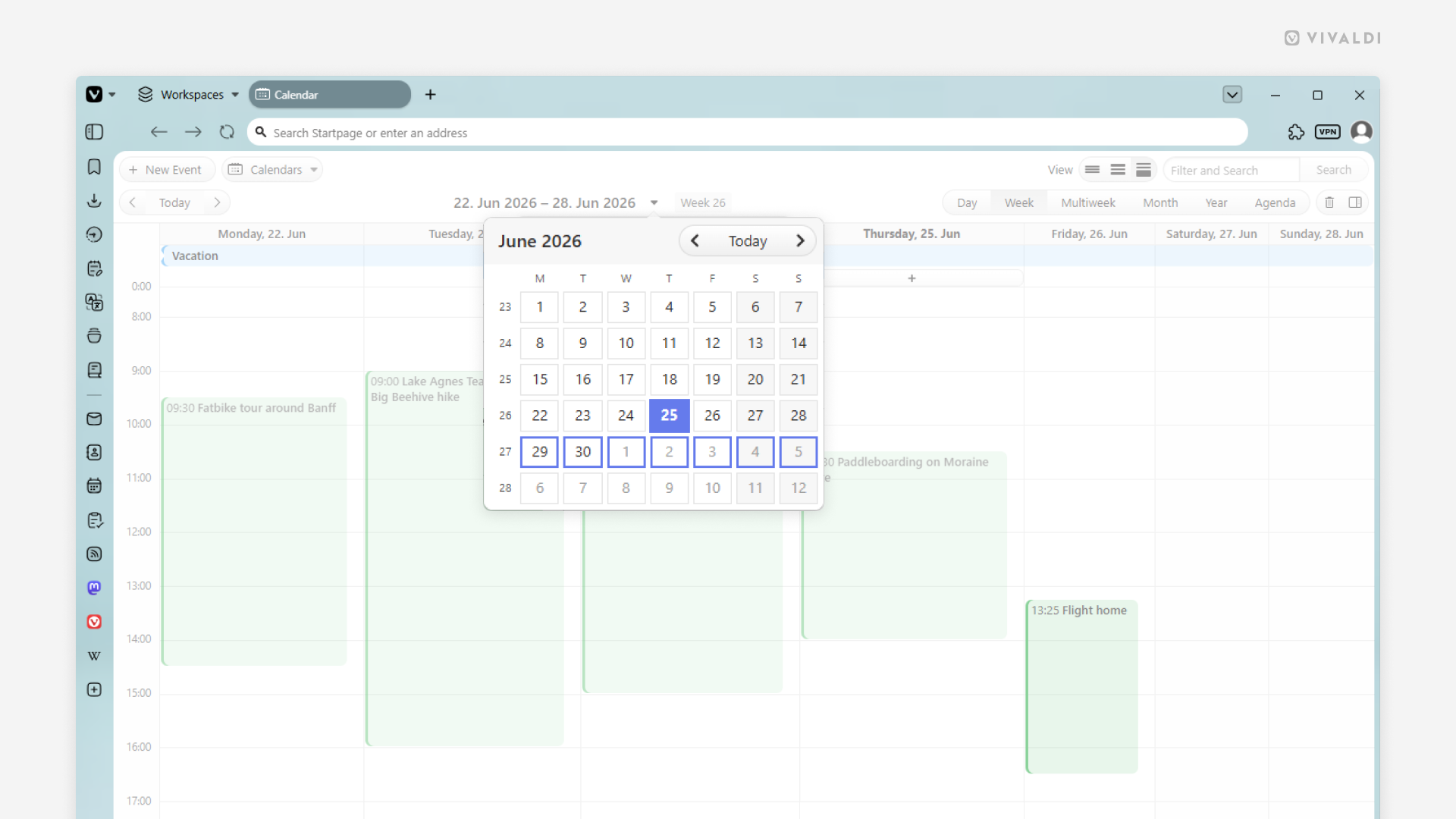
Press G to open the date picker in the Vivaldi Calendar.
While working in the Vivaldi Calendar, you may occasionally need to jump far beyond the current day/week/month. In such cases, it’s easier to use the date picker to go directly to the target date. You can click on the current time range shown at the top of the calendar, or you can simply press a key on your keyboard to instantly bring up the date picker.
To jump to a specific time range using your keyboard:
- Make sure Single Key Shortcuts are enabled in Settings > Keyboard > Keyboard Shortcuts.
- Press
Gwhen the calendar is open in the active tab. - Use arrow keys to find the date(s) you want to jump to.
- Press
Enter.
Tip #824
June 16, 2026
Find the tab playing audio by looking for the speaker icon.
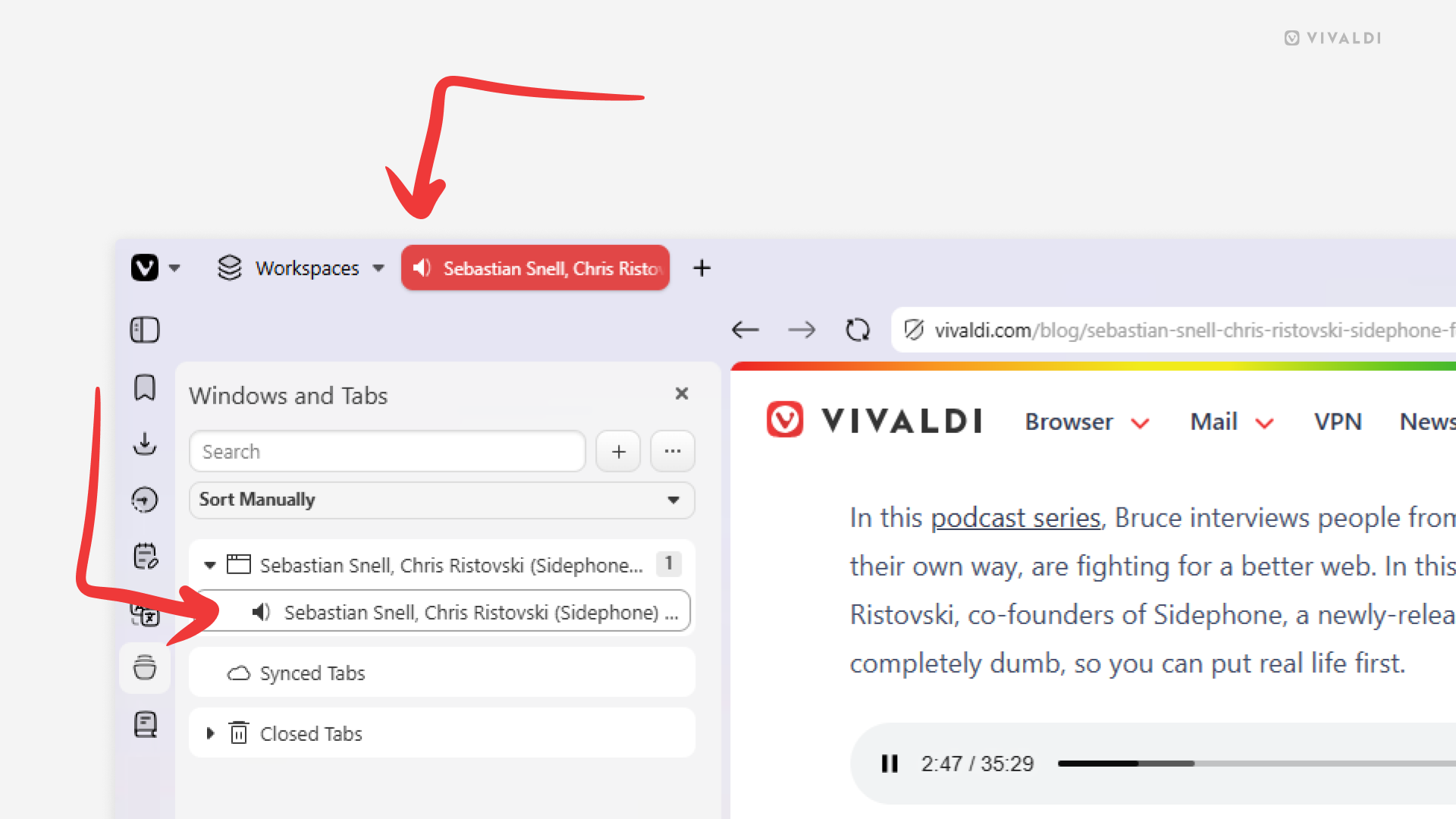
Whenever a tab in Vivaldi on desktop plays audio from, for example, a video, a speaker icon will be displayed in various places in the user interface, helping you see which tab the sounds come from.
You can find the speaker icon in the following locations:
- In place of the site’s favicon:
- On the Tab Bar
- In the Windows and Tabs Panel
- In the Tab Button menu
- In the Workspaces menu next to the space’s name the audio playing tab is in.
By clicking on the speaker icon you can (un)mute the tab.
Tip #822
June 9, 2026
Pick a starting point for your custom Vivaldi browser appearance.
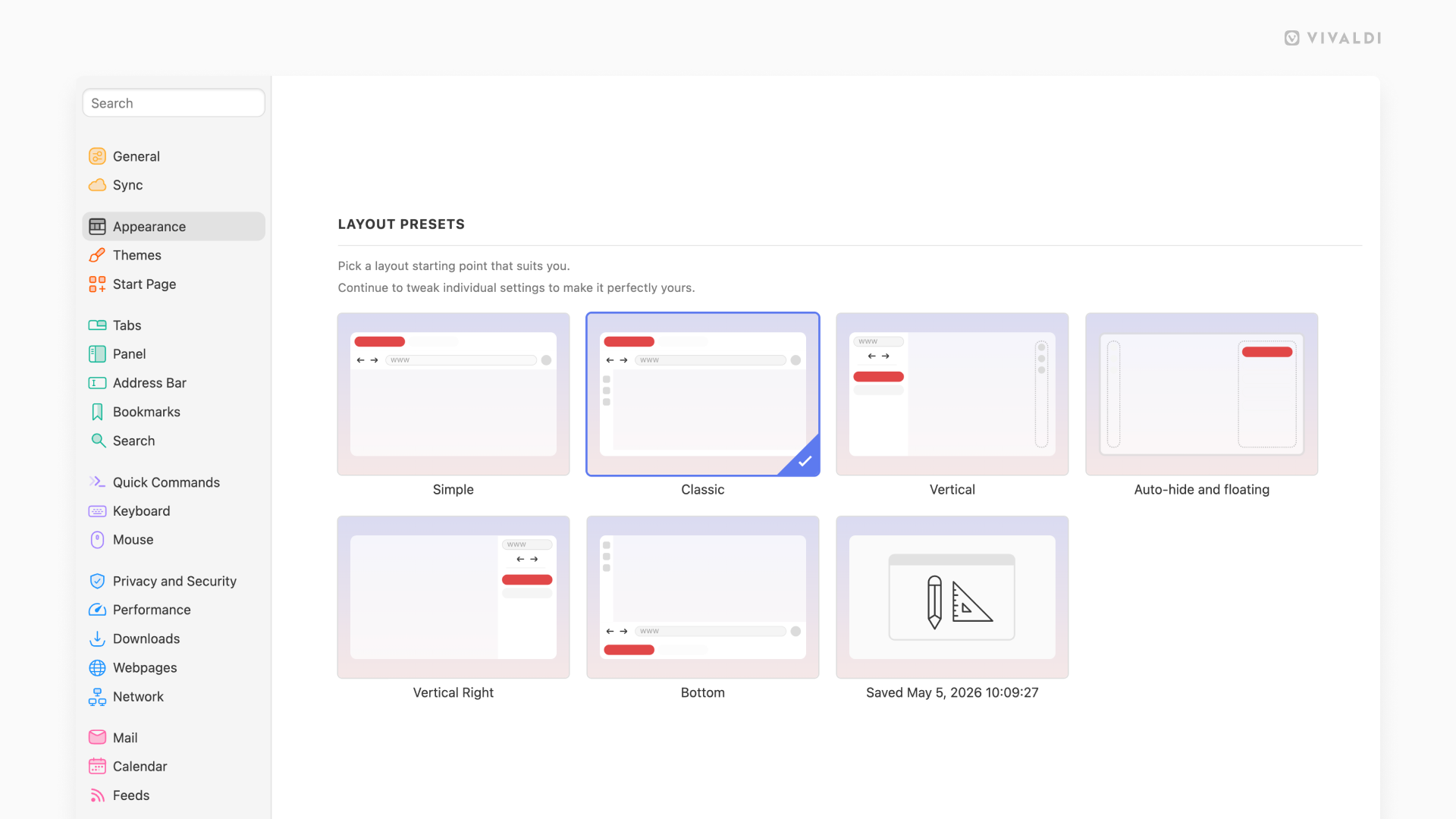
The sheer range of settings can be overwhelming, especially to brand new users, so Vivaldi offers 6 layout presets you can choose as a starting point in your customization journey.
You can pick a layout, either:
- During onboarding when you’ve opened Vivaldi for the first time (revisit onboarding from the Vivaldi menu > Help > Vivaldi Welcome Tour).
- From Settings > Appearance > Layout Presets.
The Saved layout is your custom configuration, which gets updated with each restart.
Tip #820
June 2, 2026
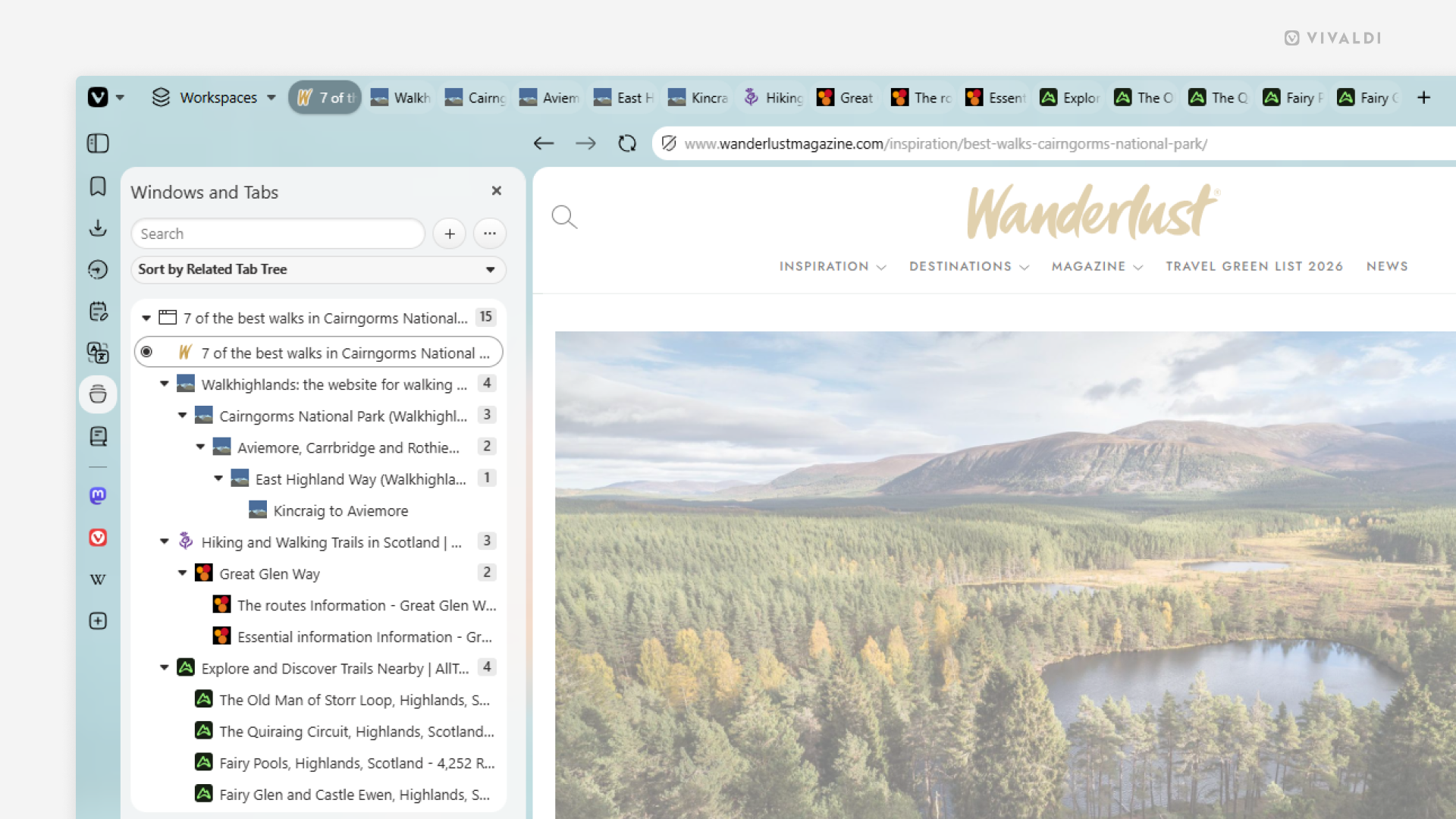
Sort tabs by relation in the Windows and Tabs Panel for a tree-style view.
If you have a ton of tabs open, viewing them in a tree-style layout allows you to get a hierarchical overview of all your browser windows, Workspaces, Tabs Stacks and Tabs. See the child-parent relation, reorder tabs, collapse/expand groups, and more.
To switch to a tree-style view in the Windows and Tabs Panel:
- Open the Windows and Tabs Panel.
- Click on the sorting menu between the search field and the list of tabs.
- Select “Sort by Related Tab Tree”.
Tip #818
May 26, 2026
Choose which Panels to display on the browser’s sidebar.
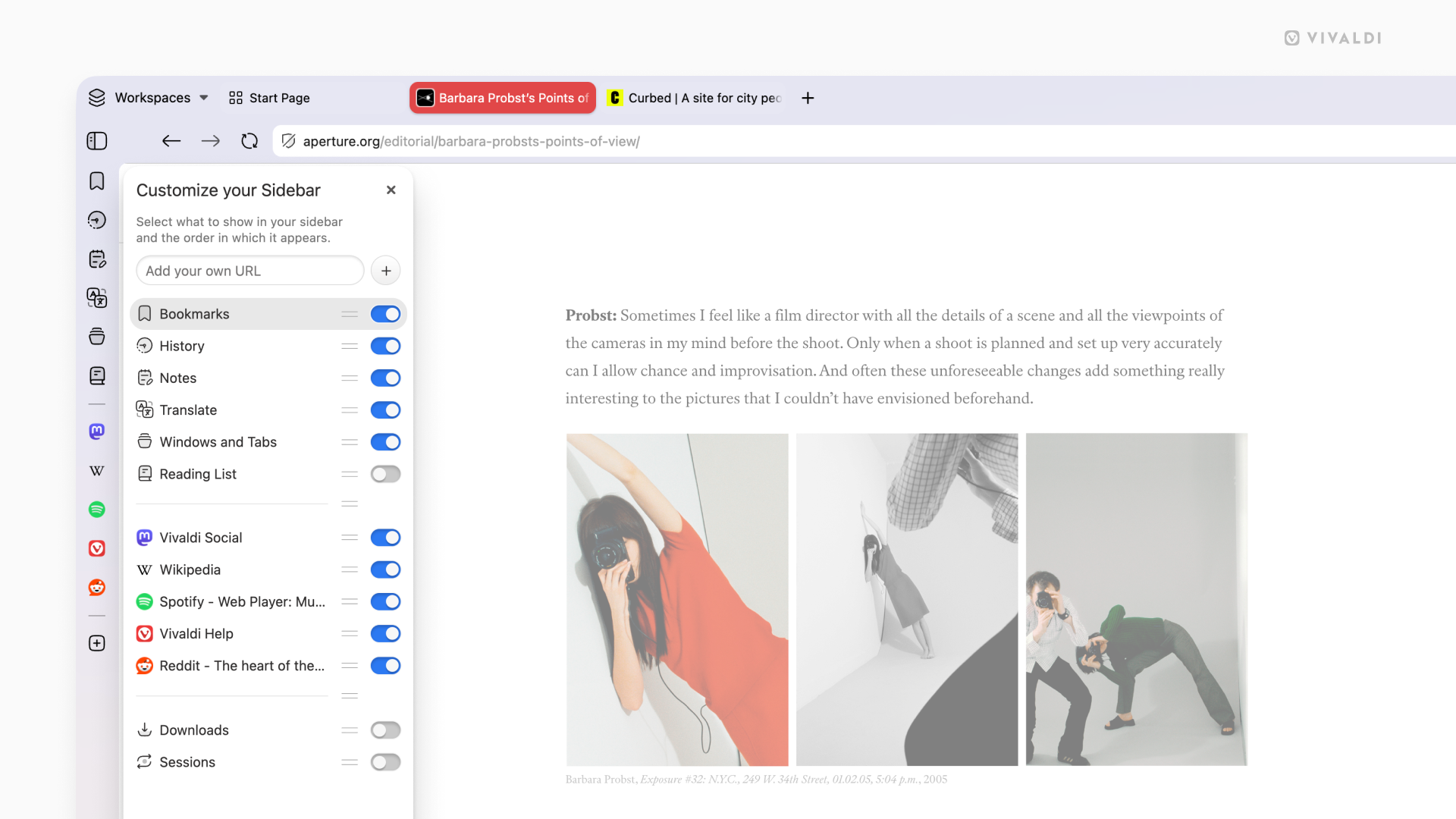
The sidebar gives you quick access to important tools without pulling you away from the tabs you’re working in. It’s up to you to decide which Panels to display there and which to hide.
To customize the list of Panels:
- Click on the
+“Customize Panel” button on the sidebar. - Toggle the visibility of the panels on and off.
Tip #817
May 21, 2026
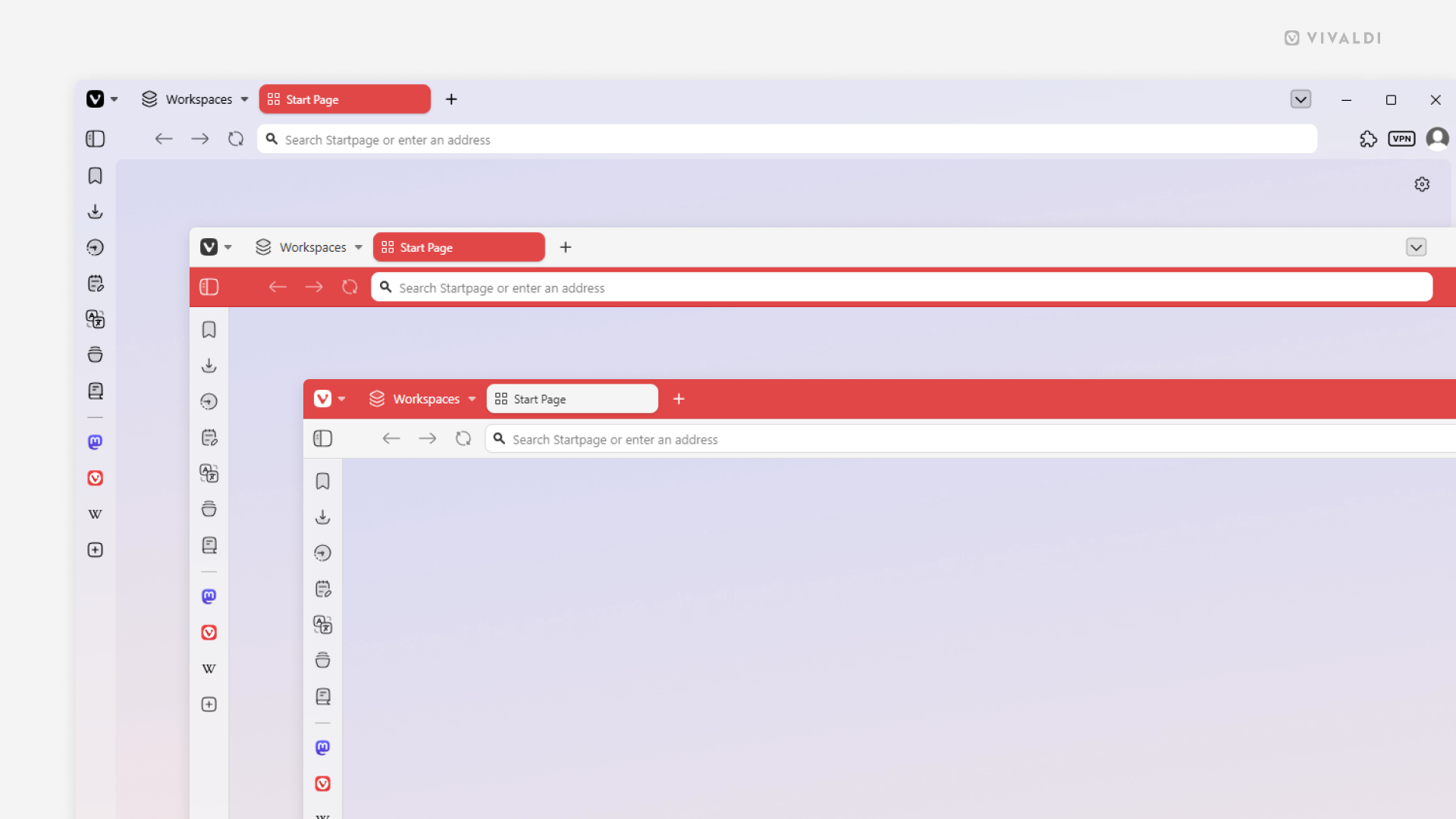
Choose the Coloring Mode that feels right for your browser theme.
With Themes you can give your browser a unique look. You can pick a ready made theme, edit one or create a completely new theme. When changing the theme’s settings, the Coloring Mode setting will have a big impact on how your browser will look, as it determines how the colors are applied to the toolbars.
There are 3 options to choose from in Settings > Themes > Editor > Colors > Coloring Mode:
- Accent Color on Tab Bar (window in the foreground)
- Accent Color on Address Bar (window in the middle)
- Unified (window in the background)
Tip #816
May 19, 2026
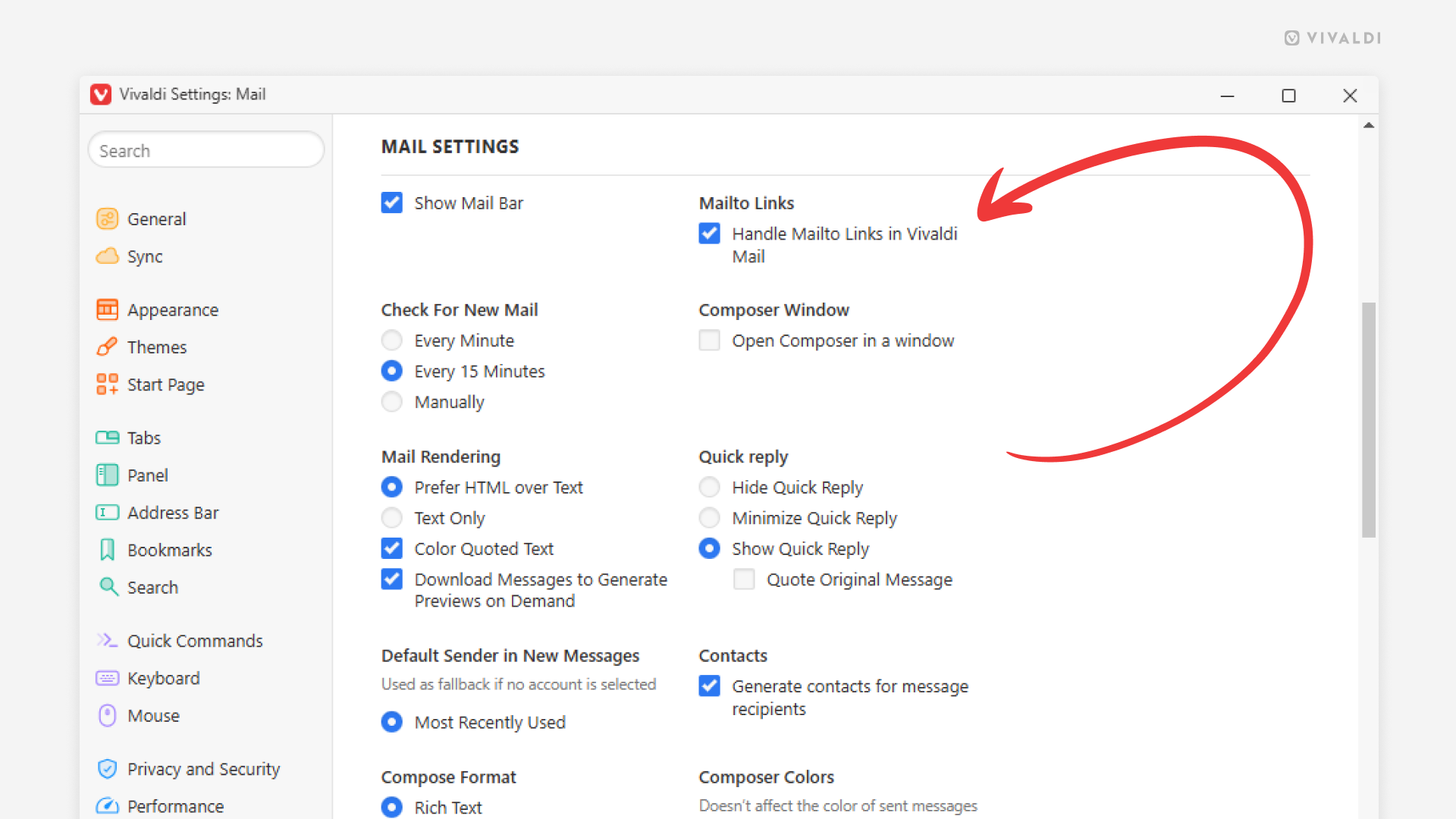
Click on email addresses on web pages to start composing messages in Vivaldi Mail.
When you see an email address on a web page that looks like a link, you can click on it to open a mail client and start composing an email to that address.
If Vivaldi Mail is your main mail client, you should allow the browser’s built-in mail client to handle these Mailto links.
To review your preferences:
- Go to Settings > Mail > Mail Settings > Mailto Links.
- Enable “Handle Mailto Links in Vivaldi Mail” to compose messages in Vivaldi Mail.
Keep it disabled, if you prefer to open a different mail client.
Tip #815
May 14, 2026
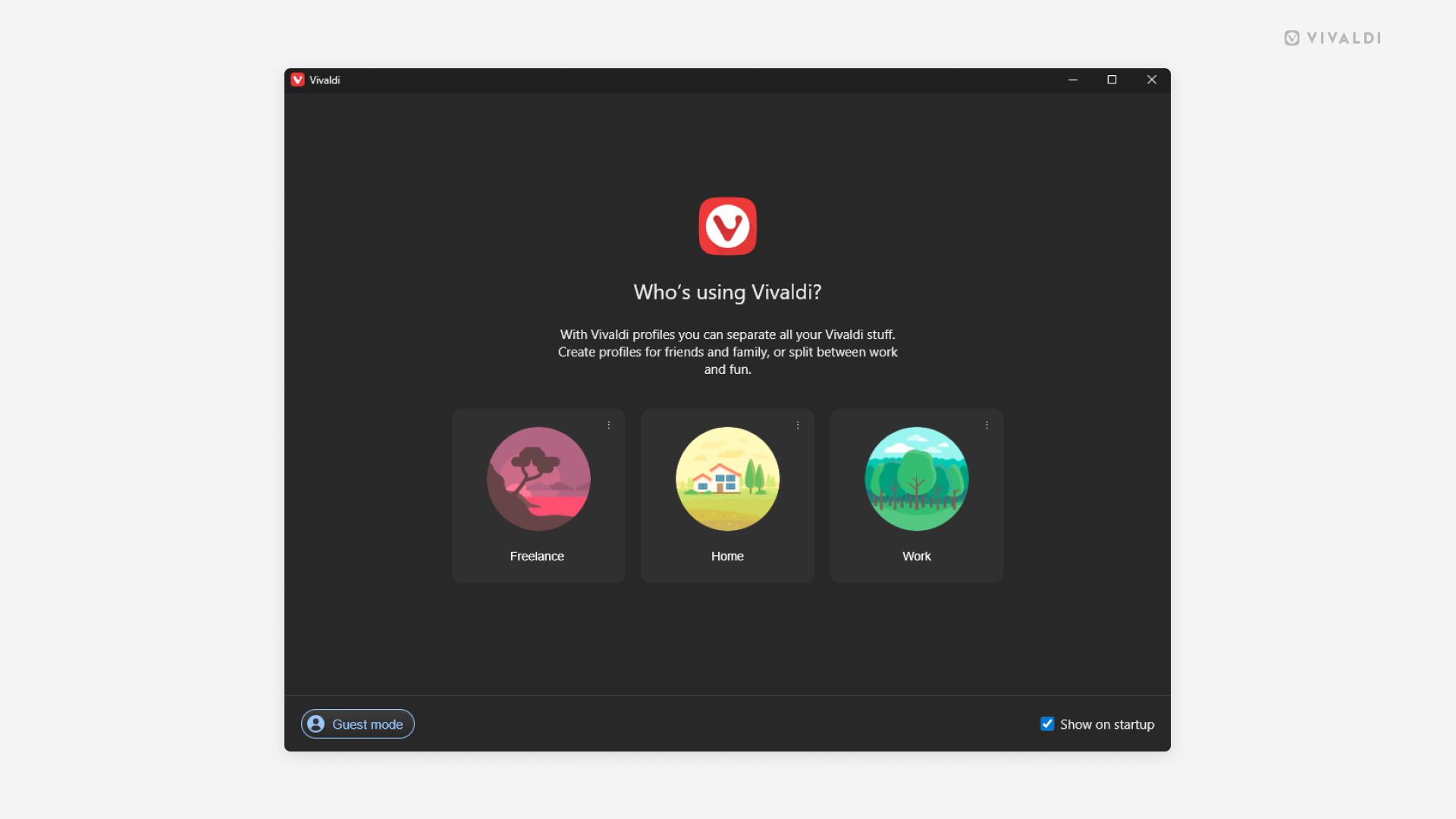
View and edit User Profiles from the Profile Manager.
User Profiles are a great way to compartmentalize your browsing data (Bookmarks, Passwords, etc.) based on use case (personal, school, work, etc.) or when sharing the computer with someone.
When you’ve created multiple profiles, every time you open Vivaldi, you’ll first see the Profile Manager, which allows you to pick the profile you want to use. Naturally, you can disable it, if it doesn’t fit your workflow.
To view the Profile Manager when the browser is already open:
- Go to Settings > General > Startup > Profile Management, and click on “Manage Profiles”.
- Type “Manage Profiles” in Quick Commands.
- Create a Keyboard Shortcut or a Mouse Gesture for the action.
Additionally, you can switch and manage profiles from the User Profiles button on the Address Bar.
Tip #813
May 5, 2026
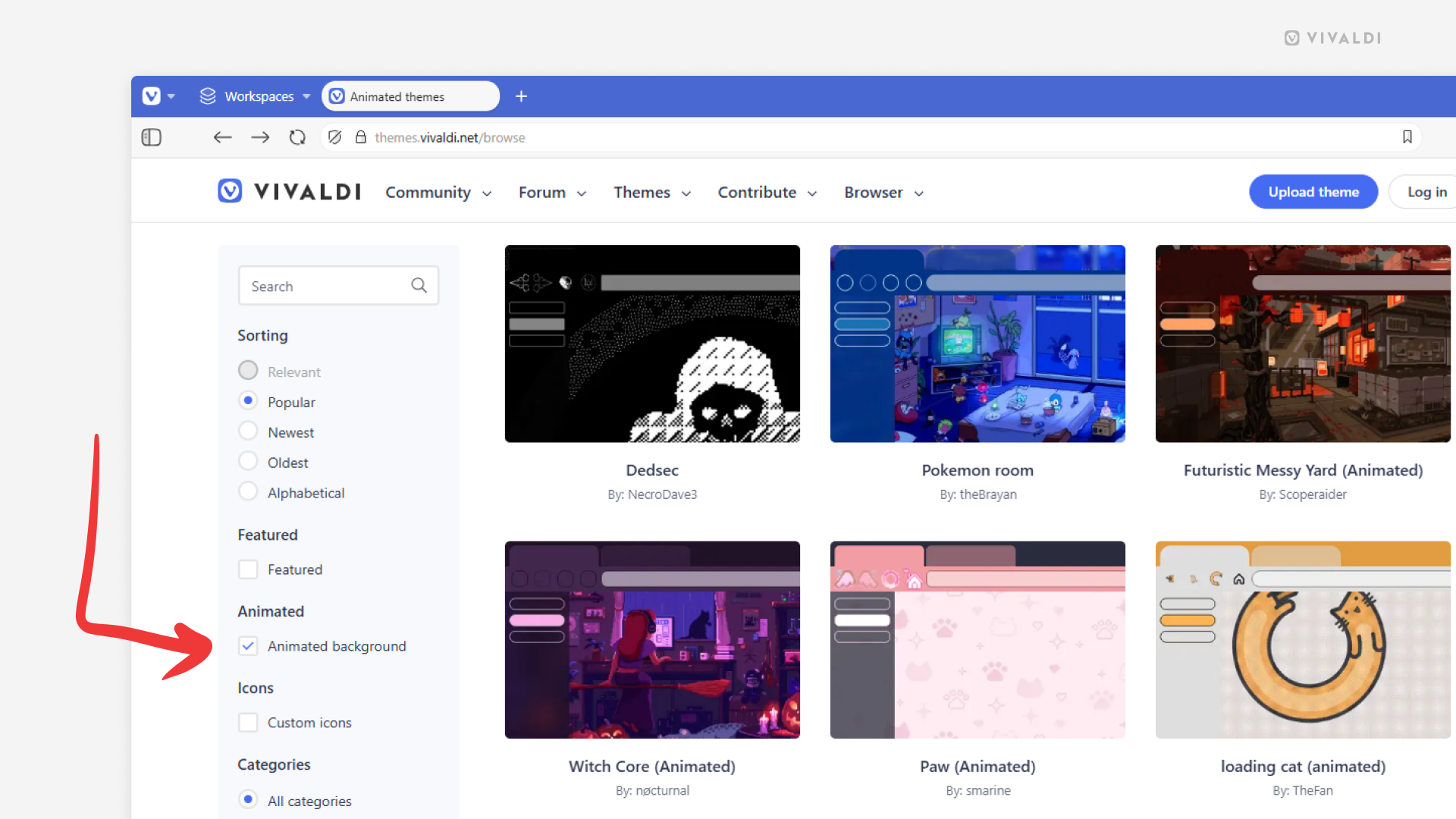
Browse and download themes with animated backgrounds from Vivaldi Themes.
If you want to bring some life onto your Start Page, you can do it with an animated background. You can add your own file to a custom theme in Vivaldi’s Settings > Themes > Editor > Background > Select Image, or download a complete theme with a matching animated background from Vivaldi Themes.
To find and install animated themes:
- Go to https://themes.vivaldi.net.
- Go into one of the categories (Featured, Popular, Latest, etc.).
- In the menu on the left, tick the box for “Animated background”.
- Click on a theme you like.
- On the theme’s profile, click “Download” to preview the theme.
- If you want to use the theme, click “Install” in the dialog window. If not, click “Cancel” and keep browsing.
Since large animated backgrounds can affect the browser’s performance, choosing lighter, smaller files is usually a better option.
Tip #811
April 28, 2026
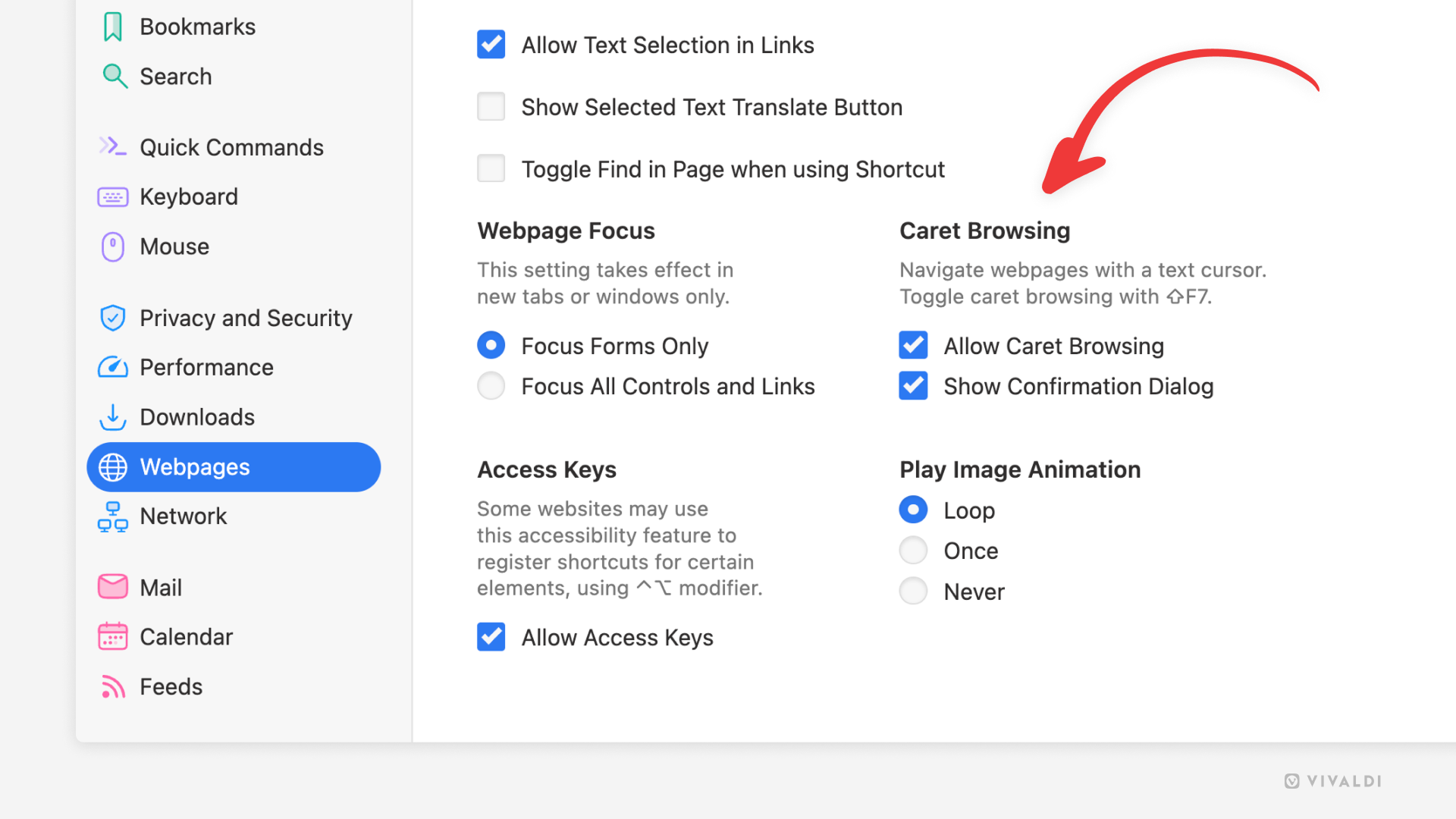
Navigate and select text on web pages just like in text editors using Caret Browsing.
Caret browsing allows you to navigate through web pages with the arrow keys on keyboard similarly to Spatial Navigation. The difference is that your place on the page is shown by a visible text cursor (caret) similarly to how it’s done in text editors.
To enable Caret Browsing:
- Go to Settings > Webpages > Caret Browsing.
- Enable “Allow Caret Browsing”.
To quickly toggle the feature on and off, use the Keyboard Shortcut Shift+F7 / ⇧F7.
When enabled, use the arrow keys to move around on the page. Hold down the Shift / ⇧ key and press the arrow keys to select text.